
Running AI models in the browser with Transformers.js
 Yassine Benabbas
 Sylvain Pollet-Villard
- 11 Min To Read
- 13 Jan, 2026
We saw in a previous article how browsers are starting to support built-in AI capabilities through native APIs. Now, let’s explore another approach to run your own custom AI models in the browser using Transformers.js.
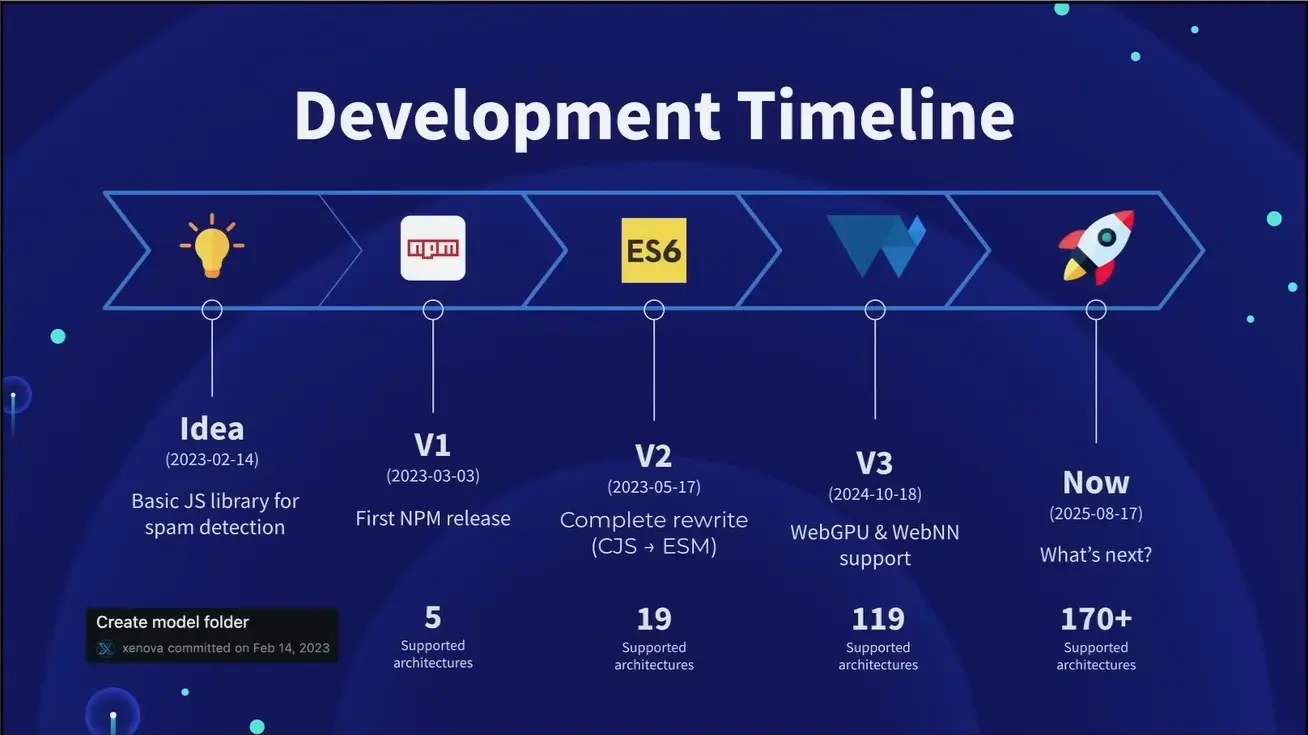
Transformers.js is a JavaScript library from Hugging Face that allows you to run pre-trained AI models directly in the browser or in a JS runtime (Node.js, bun, Deno, etc.). It supports a wide range of models and use cases, including natural language processing (NLP), computer vision, audio, and more. The number of models running on Transformers.js is growing rapidly, thanks to the active community around the project. The following illustration presented during the Web AI summit 2025 shows the evolution of transformer.js models over time (credits to Joshua Lochner alias Xenova).
The capabilities of web applications that can leverage this library are also growing. Transformers.js is designed to be functionally equivalent to its Python counterpart, although not a direct port. One difference is that Transformers.js uses the ONNX runtime to run AI models and is thus compatible only with ONNX models. Many ONNX models are available on Hugging Face Model Hub , and it is possible to convert models from other frameworks like TensorFlow or PyTorch to ONNX format using a tool called Optimum . So it is very easy to start prototyping with ONNX models, but you might consider self-hosting them for your production use cases.
This post uses Transformers.js 3 but Transformers.js 4 has recently been announced during Web AI summit 2025 which promises even more improvements and supported models.
Usage with Transformers.js pipelines
The easiest way to use Transformers.js is through its pipeline API , which takes care of various preprocessing and postprocessing tasks for us.
The general pattern of using a Transformers.js pipeline is as follows:
- Add the library using a CDN or with
npm install @huggingface/transformers.js. - Load the pipeline, providing the desired task and model, as well as additional configuration options. The most important parameter is the first one, which corresponds to the task you want to perform (e.g., “sentiment-analysis”, “text-generation”, etc.). The others are optional.
- Call the loaded pipeline with the input data.
- Process the output as needed.
To have a better understanding of how it works, let’s look at some examples:
Example 1: Sentiment analysis
Let’s create a sentiment analysis web application. We will keep it simple with no web framework used, but we will use Vite , TypeScript and Bun just to get a good starting base with a dev server and a typed codebase.
bun create vite@latest transformersjs-demo # Choose "vanilla-ts" template
cd transformersjs-demo
Add the dependency for Transformers.js:
bun install @huggingface/transformers.jsIn index.html, add some HTML code that asks the user to enter a sentence and provides a button to run the sentiment analysis:
<input type="text" id="user_input" placeholder="Enter a sentence" />
<button id="analyze_btn">Analyze sentiment</button>
<div id="results_output"></div>
In main.ts, add an event handler for the button that sets up the Transformers.js pipeline for the
sentiment-analysistask and runs it:import { pipeline } from "@huggingface/transformers.js"; const input = document.getElementById("user_input") as HTMLInputElement; const output = document.getElementById("results_output") as HTMLDivElement; const analyzeButton = document.getElementById( "analyze_btn" ) as HTMLButtonElement; analyzeButton.addEventListener("click", async () => { analyzeButton.disabled = true; // Disable button to prevent multiple clicks output.innerHTML = "Analyzing..."; const model = await pipeline("sentiment-analysis"); const result = (await model(input.value)) as any; output.innerHTML = result[0].label; analyzeButton.disabled = false; // Re-enable button after analysis });
In the above code, when calling await pipeline('sentiment-analysis'), Transformers.js will create a pipeline instance tailored for sentiment analysis from text.
The second parameter is optional and allows specifying the model to use for this task. If we don’t provide it, a default model will be used.
The third parameter is also optional and is used to specify additional options for the pipeline, such as the device to run the model on (CPU or GPU) or a callback function to report progress.
To summarize, the arguments of pipeline are, in order:
task: The name of the task to perform (e.g.,"sentiment-analysis"). The full list of supported tasks is available in the official documentation as tables grouped by task type. TheIDcolumn contains the unique identifier of the task and contains the possible values of thetaskparameter.model: The model to use for the task (optional). The full list of supported models is available in the official documentation . However, it is recommended to open themodelslink in the tasks table to see the models available for each task.options: An object containing options for the pipeline (optional). Some example options are: -device: Specifies if the model should run on the CPU or GPU. The library uses WebAssembly (WASM) by default and it is possible to set it towebgputo provide more efficient computation. -progress_callback: provides progress updates. This is useful to report the progress to the user when a model is downloaded for the first time.
The above example specified only the first parameter of the pipeline function, which is the task name.
If we wanted the pipeline to use webGPU and a default model, we would define it like this:
const model = await pipeline("sentiment-analysis", undefined, {
  device: "webgpu",
});
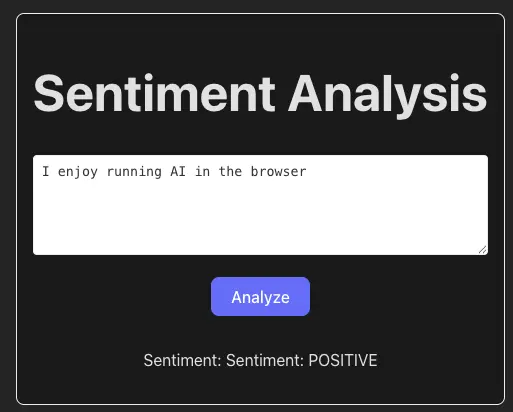
Here is an illustration of a webapp implementing this example:
Example 2: Text-to-speech
Add a button for running text-to-speech:
<button id="speak_btn">Speak</button>Add an event handler that creates an
text-to-speechpipeline to generate the raw audio, and then useAudioContextto play it back.const speakButton = document.getElementById( "speak_btn" ) as HTMLButtonElement; speakButton.addEventListener("click", async () => { speakButton.disabled = true; const synthesizer = await pipeline( "text-to-speech", "Xenova/speecht5_tts" ); const embeddingUrl = "https://huggingface.co/datasets/Xenova/transformers.js-docs/resolve/main/speaker_embeddings.bin"; const output = await synthesizer(text, { speaker_embeddings: embeddingUrl, }); // Play the generated audio const audioContext = new AudioContext(); const source = audioContext.createBufferSource(); const audioBuffer = audioContext.createBuffer( 1, output.audio.length, output.sampling_rate ); audioBuffer.copyToChannel(output.audio as Float32Array<ArrayBuffer>, 0); source.buffer = audioBuffer; source.connect(audioContext.destination); source.start(); speakButton.disabled = false; });
You can find the online demo and the complete code of this demo here
From demo to feature
These examples are just a starting point to illustrate how easy it is to use Transformers.js for common AI tasks. Converting these demos into production-ready product features obviously requires more work, but you can already envision new use cases for your web applications. For example, the sentiment analysis model could be used to analyze on-the-fly user reviews or comments on a website, then provide a personalized answer based on the detected sentiment and speak it aloud with the text-to-speech model for further immersion.
New models are also already in the works to support more advanced use cases, such as emotion-aware text to speech synthesis
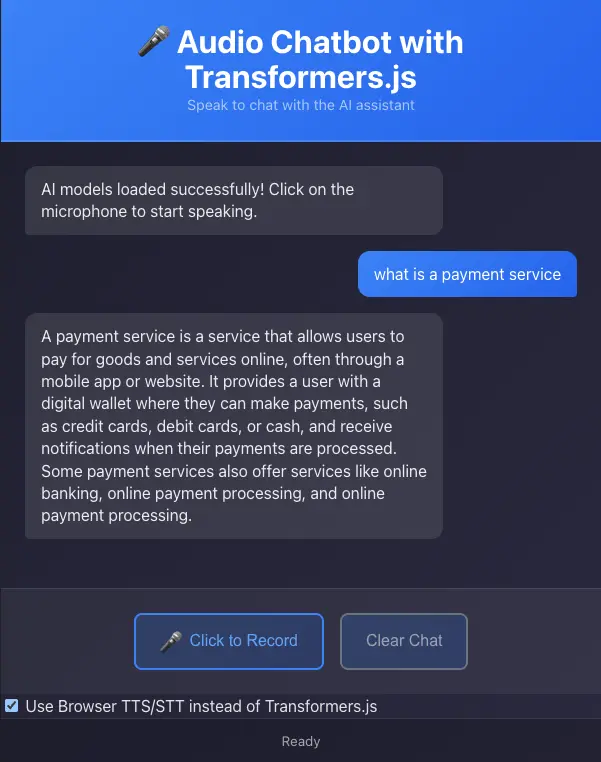
Transformers.js supports many more use cases and can theoretically cover all those supported by Transformers Python . For example, we have combined, speech-to-text, text generation, and text-to-speech pipelines to create a simple voice question-answering application that runs entirely in the browser. In this application, the user can ask questions by speaking, and the application will generate answers using a language model and read them aloud. The application also provides the choice of using native browser speech recognition and synthesis APIs to compare the different approaches. The source code of the application is available on GitHub . As a side note, the app may freeze when inferring because Transformers.js runs on the main thread by default and we didn’t implement a web worker for this demo.
You can find the online demo and the complete code of this demo here
This is just scratching the surface of what you can do with Transformers.js!
Transformers.js vs built-in AI API
So how do you choose between using Transformers.js and the built-in web AI APIs we saw in the previous article ? The advantages of using the built-in Web AI over Transformers.js are:
- No external dependencies: You don’t need to include any external libraries or frameworks, which reduces the size of your application and improves performance.
- Native support: The API is built into the browser, which means it can take advantage of the browser’s capabilities and optimizations.
- Download the model once: The Built-in web AI APIs download the model once and reuse it across the different APIs and across domains. This means that if many web apps use the same model, they will share the downloaded copy, which reduces the loading time and improves performance. This is the opposite of Transformers.js, which can download different models (with varying sizes) depending on the task, and they are not shared across different origins. This means that if many web applications use the same model, they will each download their own copy, which can increase loading times and bandwidth usage.
On the other hand, Transformers.js also has advantages over the Built-in AI web API:
- More model options: Transformers.js supports a wider range of models available at Hugging Face Model Hub , which may be more suitable for specific tasks.
- Flexibility: Transformers.js is a general-purpose library that can be used for a variety of tasks beyond just text generation, such as image processing and multi-modal tasks.
- Community support: Transformers.js is provided by HuggingFace which has a large and active community, which means you can find more resources, tutorials, and pre-trained models to help you get started.
- Wider browser support: Transformers.js can run using Wasm or Webgpu, meaning that it supports a broader range of devices and platforms. At the time of writing, built-in Web AI works only on Chrome, and some APIs require enabling feature flags or using a beta, development, or Canary build of Chrome.
- Stable API: Transformers.js is stable and relatively well-documented. At the time of writing, built-in web AI APIs are still evolving, and may not have the same level of stability and documentation.
To summarize, you should use the native API if you want to add a non-essential feature that is covered by one of these built-in APIs, and you want to minimize dependencies and maximize performance. But if you want to be in full control of the model you use, or if you want to use a model that is not yet supported by the built-in web AI APIs, the safest choice is to use Transformers.js.
In the future, we may see new native API that bring the same level of flexibility and control that Transformers.js offers today. Historically, many external JS libraries have become standards, so it’s possible that we will see similar trends with these new AI APIs.
A possible development is that we are moving this control in the hands of the final user, allowing them to choose which models to download and use for different tasks, or relying on the models already built into their browser or operating system. There are many security, privacy, and neutrality issues at stake here, and the legislation could also come into play to change this landscape.
Client-side (in browser) AI vs server-side AI
Even though it is possible to run AI on the browser, there are still some limitations and trade-offs to consider when choosing between browser AI and server-side AI.
Let’s start by listing some of the advantages of using AI in the browser over server-based AI:
- Scalable by design: Since the computation is done on the client side, web AI has no scaling problem with the number of users, as there is no need to provision additional server resources to handle increased demand.
- Less expensive: Web apps that take advantage of local web AI can reduce costs associated with server maintenance, data transfer, and cloud computing resources.
- Easier to setup: Web AI can be easier to set up and deploy, as it does not require server infrastructure or complex backend systems. In fact, a static HTML page can use web AI without any server-side code.
- Privacy and security: By processing data locally, web AI can help protect user privacy and reduce the risk of data breaches associated with sending sensitive information to a server.
- Offline capabilities: Local web AI can work without an internet connection, making it more reliable in situations where connectivity is limited or unavailable.
The disadvantages of using AI in the browser compared to server-based AI are:
- Limited resources: Browser-based AI may be limited by the device’s hardware and performance capabilities, which can impact the complexity and size of the models that can be run.
- Inconsistent performance: The performance of browser-based AI can vary depending on the user’s device and browser, leading to potential inconsistencies in user experience.
- Less models and use cases: While browser-based AI is growing, it may not yet support the same breadth of models and use cases as server-based solutions.
- Less control over the model: Browser-based AI offers less control over the model and its environment compared to server-based AI, which allows for easier updates, maintenance, and customization.
Conclusion
This series of posts explored how to run AI directly in the browser, either through built-in web AI APIs or by using Transformers.js. The biggest advantages of using client-side AI models are privacy and cost-effectiveness, and we believe these concerns will become increasingly important in the future, so we should move more in this direction.
Transformers.js can be used for tasks that use small models and compute quickly, but currently, server-side AI is the most reliable option for running AI workloads, especially for complex tasks that require significant computational resources. However, as AI web APIs and libraries continue to improve, we may see more use cases where client-side AI becomes a viable alternative to server-side AI. So, let’s keep an eye on this exciting development!